
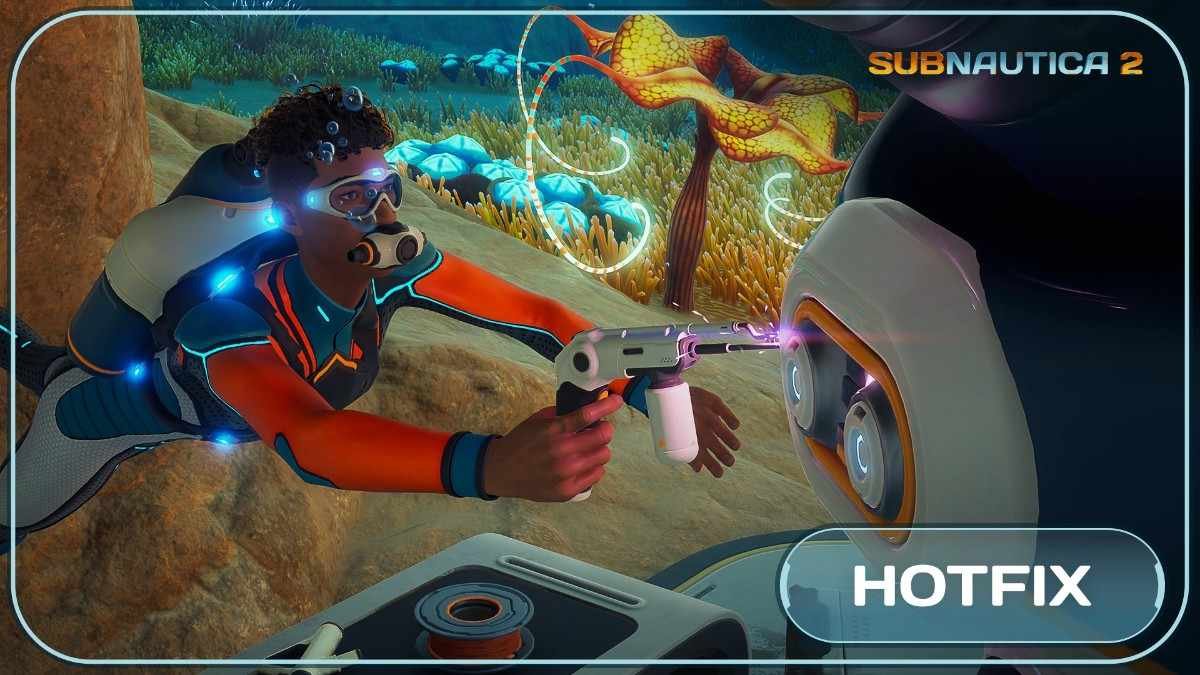
If you are wondering how to play Subnautica 2 in VR with proper hand controls, you are at the right place. Well, the game does not have official VR support yet, but thanks to modding community we have a mod now. Although, it is not perfect yet, but it already feels quite immersive.
Down below is the step by step guide on how to install the Subnautica 2 VR motion controls mod.
Firstly, you need to have the PC version of Subnautica 2 installed. It works on Steam, Game Pass, and Epic. You will also need a VR headset. Most people are using Quest 3 with Virtual Desktop or Steam Link, but native PCVR headsets work too. A strong graphics card is recommended since the game is quite heavy when running in VR.
- First, download the latest UEVR Nightly build from here. This is the base tool that makes Unreal Engine games work in VR.
- Secondly, grab the custom UEVRBackend.dll file made by Joey Hodge from this page.This file improves how the game renders in stereo and helps motion controls work better. Just replace the original file with this one inside your UEVR folder.
- Third, download the motion controls profile from the SN2 UEVR GitHub repository here
This profile adds actual hand tracking, swimming motions, animated hands, and options for a visible body.
Firstly you need to extract the UEVR Nightly files into a folder on your PC. Then copy the UEVRBackend.dll file into that same folder and overwrite the existing one.
It is better to open UEVRInjector.exe first before launching the game. If you have played Subnautica 2 with UEVR before, click on Open Global Directory and delete any old Subnautica 2 folders inside it. This helps in performing a clean profile import.
Now click on Import Config in the UEVR tool and select the motion controls profile you downloaded. After importing the profile, you can rename your Subnautica 2 game folder depending on your launcher.
Once that is done, launch Subnautica 2 normally in flatscreen mode. After the game is running, go back to UEVRInjector.exe, select Subnautica 2 from the list of running processes, choose OpenXR as your runtime, and hit inject.
The following settings are important to avoid visual bugs and broken UI.
Make sure the game is running in Full Screen mode. If it is in windowed mode, the UI can break completely. Also turn off Motion Blur and Underwater Blur Disable Frame Generation. Also, in the accessibility settings, turn off Camera Bobbing. These changes help reduce visual issues in VR.
Once you are in the game and UEVR is injected, open the UEVR menu. Go to Unreal Settings and enable the option called Preserve secondary pass on G5.5. This setting is necessary for the native stereo fix to work properly. Without enabling it, you may experience black screens or broken visuals.
Subnautica 2 is a very demanding in VR. For best performance, try running the game on medium or low graphics. Also Turn DLSS to Performance or even Ultra Performance. You should also disable auto save in the accessibility settings, as it can cause crashes in VR mode.
If you are using a Quest headset, try increasing the bitrate in Virtual Desktop and lowering the resolution a bit if you notice stuttering.
Once everything is set up, jump into a safe area like your base or near the surface when testing for the first time. The motion controls let you physically swim by moving your arms, grab items with your hands, and use tools more naturally.
By pressing the left grip you can swim straight down and by pressing right grip you can swim straight up. If you want to quickly access the inventory, just press and hold the Left Menu for one second. If you are on Quest, you can swap hotbar items using thumbstick or D-Pad.
And if you are using Valve Index, Vive or other PCVR headsets, you can remap item swapping to a gesture for easier access.
You might feel little difficult to adjust at beginning, but it will feel better once you get used to it. Also, since the mod is still new, a game update can sometimes break things. So keep checking the GitHub pages regularly for updated files. If you are still facing an issue you can have a look at this video below.
- If the game does not show up in UEVR, double-check that you renamed the folder correctly.
- Black screens or broken visuals can usually be fixed by using the latest Joey Hodge backend file.
- If motion controls are not responding properly, you can try re importing the profile.
- Any performance issues can also be improved by lowering graphics settings and using DLSS in Performance mode.
This mod is currently one of best ways to experience Subnautica 2 in VR with actual hand controls. Well, it is not polished as native VR games, but it lets you dive in and feel much more connected to the world.
