

With Marvel’s Spider-Man 2 finally out, Sony has yet another new banger in the 2023 portfolio of the PS5 console. Developed by California-based Insomniac Games, SM2 is a very hyped and well-deserved title. The first game was a certified hit from Insomniac, who was previously known for putting out the PlayStation classic series Ratchet & Clank. And with three great Spider-Man games under their name, the studio now has a new series to be known about. While SM2 is nothing short of a great game, it, like any other game, has some issues that need to be ironed out. One such issue happens to be crashing due to Error Code CE-108255-1, which the players seem to be complaining about a lot.
This particular issue mainly happens when an error occurs in the applications that are currently running on your console. Due to the randomness of this issue, players have encountered crashes at various points of the game. Some have reported getting about ten or so minutes of gameplay before encountering the crash due to this error code. So, is there a fix for it? Continue reading to find out.
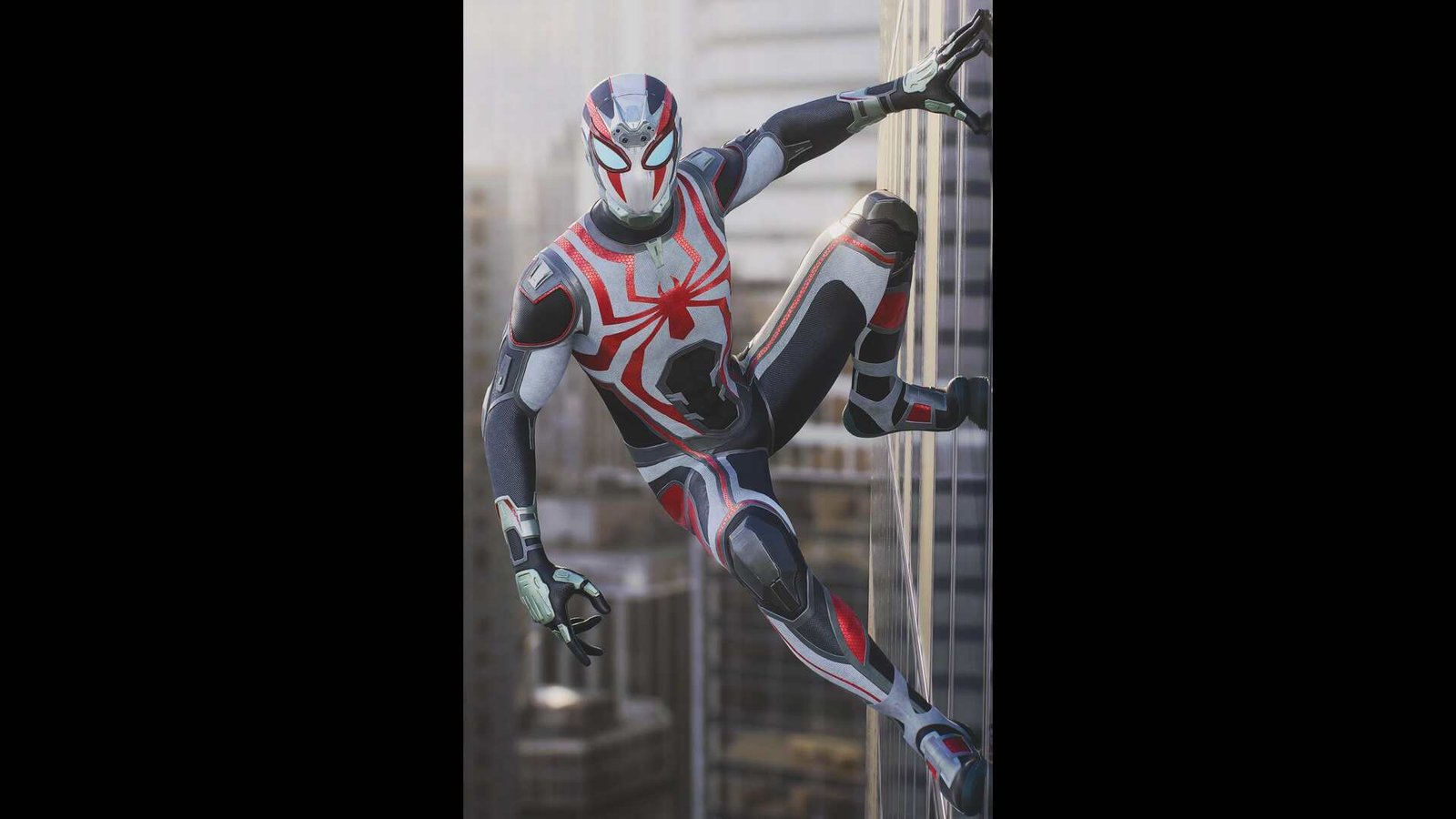
Marvel’s Spider-Man 2 Crashing due to Error Code CE-108255-1: How to fix it
CE-108255-1 is a pretty common error. So much so that Sony has shared a set of fixes of their own. And we, of course, have mentioned them, along with some potential workarounds as well.
Update system software –
The very first thing that PS Support recommends is to simply update the system software along with the game, if it happens to have one. Right now, SM2 has only got the Day 1 patch update, and that too is only available for players who bought the disc version. So, download the patch and update the PS5. After you have done both of these things, restart the console and check whether you encounter this error.
Reinstall –
The support team also suggests deleting the game first and then reinstalling it. So, if you are going to proceed with this method, don’t forget to save your progress first. Afterwards, you can just go to Settings > Storage and then reinstall the game from there. Also, try launching the game in offline mode and see if that helps.
Delete the Day 1 patch –
This workaround is mainly for players who bought the game’s physical version. It seems like one player got this issue fixed by simply deleting the Day 1 patch of the game. So, if it has worked for them, it might just work for you. Provided you happen to be a disc player. If you are, then just reinstall the game, and when it’s downloading, delete the update file. Also, head to Settings and turn off the Automatic Updates option from there. Now, just launch the game and enjoy.
Rebuild Database –
This is yet another common workaround from PS Support. And as the name suggests, for this workaround, you have to rebuild the PS database. But for that to happen, you need to be in Safe Mode first. And to do all this, follow the given steps:
- First, turn off every running application on the console, and then the console itself.
- Now, hold the PS5’s power button until you hear a second beep. You will hear it in around seven seconds, so be ready.
- Once you hear the beep, get your controller and connect it to the console using the USB cable that came with it. After the controller is plugged in, press the PlayStation button.
- You are now in Safe Mode. All that remains is to select Rebuild Database (option 5) and then wait for the console to finish the process.
Power cycle the PS5 –
Power cycling is just like restarting, albeit with a few more steps. Essentially, what you will be doing is turning off the console first and then removing the plug from the outlet. Wait until a good few seconds have passed. Take ten or twenty seconds. Afterward, plug back the console and turn it on. Additionally, you can also try logging out of your PSN account and then logging back in.
Factory Reset the PS5 –
The last fix recommended by PS support is to just factory reset the console. It’s a drastic method, but if nothing else works, then this might. Do know that you will lose every bit of data on your console after this process, so be prepared to download everything once again. Now, in case this is your first time doing a factory reset, here’s how to do it.
- First, close the currently running application and get to the home screen.
- Select Settings (cogwheel icon) > System > System Software.
- Now, all you need to do is select Reset Options > Reset Your Console > Reset.
- After the reset is done, download the necessary updates and the game too.
So, were you finally able to get around this issue? If yes, then why not try to learn about taking selfies in the game? And as always, don’t forget to follow DigiStatement. Also, read: Marvel’s Spider-Man 2 Stuck on Galvanize Screen Bug: Is there any fix yet
