
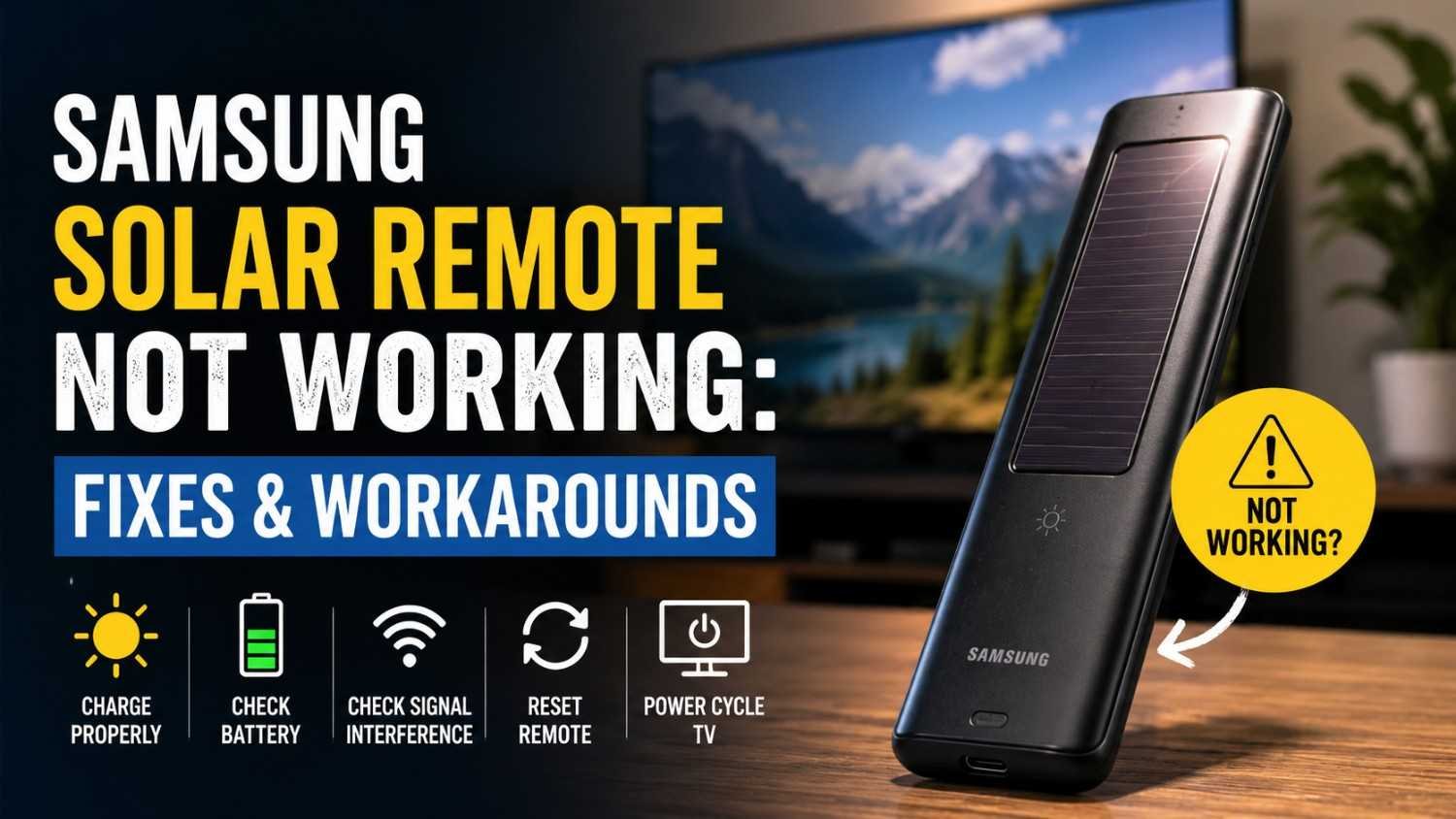
Is your Samsung solar remote not working? Well you are not alone. Samsung shifted to these solar powered remotes on most of its newer TVs, and while the idea sounds good on paper, plenty of people end up stuck with an unresponsive remote and no clue what went wrong.
The good news is this remote works quite differently from the old battery ones, and once you understand how it actually charges, fixing it becomes a lot simpler than it first appears.
Unlike older remotes that take regular batteries, this one has a small solar panel built into the back. The panel slowly charges an internal battery using either direct sunlight or just the regular light in your room. There is no battery door to open and no cells to swap out, which is exactly why a lot of the usual remote fixes people try first do not actually apply here.
🔧 Quick Fixes Covered In This Guide
1) Check If The Solar Panel Is Getting Enough Light
The most common reason these remotes stop responding comes down to something pretty simple. It just is not getting enough charge. If it has been sitting somewhere dark, tucked under a cushion, or left face down on a table for a while, the battery inside can drain completely.
Take a soft dry cloth and wipe down the solar panel first, since dust and fingerprints can block light from reaching it properly. After cleaning it, leave the remote near a window with natural light, and then try using it again.
2) Charge The Remote Using A USB C Cable
If the battery has fully drained, waiting around for ambient light to slowly charge it back up can take a frustratingly long time.
A faster route is to plug it in directly using a USB C cable. There is a charging port at the bottom of the remote, so connect that to any USB power source.
You should see a small LED light up on the front while it charges, and once that light turns off, the remote is good to go. One thing worth keeping in mind here, do not try using the remote while it is plugged in and charging, since it is not meant to function during that process.
3) Check The Remote’s Battery Percentage
Something a lot of people do not realize is that you can actually check exactly how much battery your remote has left. Head into your TV settings, go to General, then Power and Energy Saving, and you should see the battery percentage listed right there. If you are charging through sunlight rather than the cable, do not expect the number to jump quickly. It rises slowly, so check back every few minutes instead of assuming nothing is happening.
4) Rule Out Signal Obstruction
Sometimes the problem has nothing to do with charging at all. If the remote clearly has power but still will not respond, there could be something physically blocking the signal between the remote and your TV. Things like a soundbar, decorations, or even furniture placed in front of the screen can interfere with this. There is actually a simple way to test whether the remote is sending a signal in the first place. Grab your phone, open the camera, point the remote toward the lens, and press and hold the power button while watching the screen. If the remote is working, you will see a small flickering light appear on your phone’s screen even though you cannot see it with your own eyes.
5) Reset The Remote
If none of that solves it, try resetting the remote itself. On Samsung TVs from 2021 and newer that come with the solar remote, you can do this by pressing and holding both the Return button and the Enter button together, which is the center button on the navigation pad, for about ten seconds. After the reset, you will need to pair the remote with your TV again, so do not panic if it seems unresponsive for a few seconds right after.
6) Power Cycle The TV
Also, there can be possibility where the issue is within the TV rather than the remote. You can try unplugging your TV from for a minute, then plug it back in and power it on again. This step will fix any sync issues between TV and remote.
Also, if you have added any devices through the SmartThings app, you need to check that because there have been cases where this caused interference with the remote’s IR signal on certain TV models.
7) Contact Samsung Support If Nothing Works
If you have done all of this, your remote is still not working, you need to contact with Samsung support directly, especially if your TV is still under warranty.
