
This Blog was written with technical input from Stellar Data Recovery
Open the settings page of almost any android app, and you will spot two buttons that look alike: Clear cache and Clear storage. One usually removes temporary files, while the other can reset an app to its original state. It’s easy to confuse the two, especially when both options appear next to each other. Choosing the wrong one can result in losing locally stored information, app settings, or login details. Here is a look at what each button does, so you don’t worry the next time you delete any of them.
To understand the difference more clearly, we consulted data recovery experts at Stellar Data Recovery. Their technical insights help explain what happens to app data when users clear cache or storage, and what recovery options may be available if important files are lost. We have kept that part short, and the rest of the guide stands on its own to bust myths, add more clarity and remove confusion.
What is app cache and why apps keep a cache?
Every app wants to feel fast, and the cache is one of its favorite tricks for that. Think of it as a small stash of temporary files that the app saves on your phone so it can open faster next time. Music apps, for instance, may keep album covers there so they do not download them again on every visit.
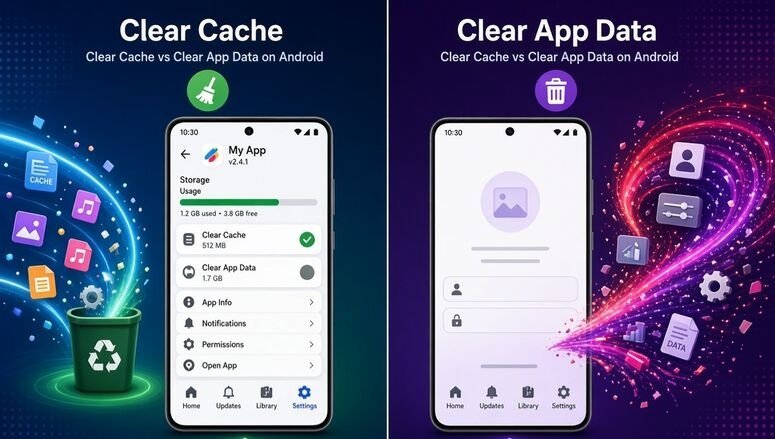
Cache files are generally temporary copies of information that an app can download or recreate. Clearing them usually does not affect account details or saved preferences, although some content may need to load again when you reopen the app. After a clear, the first launch may feel a bit slow because the app has to build the cache from scratch.
What is app data and what it holds
App data is the real record of how you use an app on your phone. Logins, preferences, downloaded items, and local databases everything stays there. Clearing it returns the app to its fresh-install state, so you will need to sign in and set things up again.
However, not all downloaded content is stored in the same location. Photos, videos, and documents saved in shared storage may remain on your phone even after you clear an app’s data. Clearing app data generally resets the app and removes its locally stored private information. On Android, this option may appear as Clear data or Clear storage, depending on the device.
Clearing App Cache and Clearing app data compared
| Clear cache | Clear app data | |
| What is removed? | Temporary files | App-specific local data, logins, settings, and local files |
| Does it sign you out? | No | Yes |
| Does it reset the app? | No | Yes |
| Are downloaded files affected? | Usually Not | Depends on where they are stored |
| When should you use it? | The app is slow or glitchy | The cache clear did not help |
| Risk of losing files | Generally Nil | Low |
“Clearing cache and clearing app data serve two different purposes. Cache usually contains temporary files, whereas app data can include information an application needs to retain its settings and locally stored content. Users should understand what an app stores locally before clearing its data. If something still goes missing, backups and recovery tools can help. Stay calm, pause your phone use for a bit, and pick the easiest fix first.” – Totan Banerjee, Data Recovery Expert at Stellar Data Recovery
Which one should you delete?
Whenever an app runs slowly, freezes, or acts strangely, clearing its cache is the safer first move. Typical signs include pictures that will not load, a screen stuck on loading, or old content that refuses to refresh. If clearing the cache doesn’t solve the issue, investigate other troubleshooting options before considering Clear data or Clear storage. Use this option only when you deliberately want to reset the app and have confirmed that important local information is backed up or can be restored.
- Open Settings on your Android phone.
- Go to Apps or App Management.
- Select the application you want to troubleshoot.
- Open Storage or Storage & Cache.
- Select Clear cache to remove temporary files.
- Select Clear data or Clear storage only if you intend to reset the app.
Menu names and navigation paths may differ depending on the Android version and phone manufacturer.
Check these things before clearing app data
A few minutes of checking can save you a long afternoon.
- Confirm that the app syncs to an online account, because synced notes, chats, and game progress usually return after you sign in.
- Save any backup or recovery codes, since two-step sign-in may ask for them again.
- Copy out anything that lives only inside the app, such as offline downloads or locally stored notes.
- Check whether important files are saved in the app’s private storage, shared internal storage, or an online account. Export or back up any locally stored information that you may need later.
- Take extra care with messaging and note-taking apps, which often keep your own records on the phone.
Photos and videos saved in shared storage, such as the phone’s Gallery or Pictures folder, generally remain after clearing an individual app’s data. However, content stored in an application’s private storage may be removed when its data is cleared. The outcome depends on how the app stores its files.
Why “delete all data” sounds scarier than it is
The warning refers to the selected app rather than the entire phone. Other applications and their data are generally unaffected. However, clearing app data can remove the selected app’s locally stored information, including settings, preferences, and files held in its private storage. Photos and videos saved separately in shared storage usually remain untouched.
What if you cleared the wrong data by mistake?
Mistakes happen, and many of them can be fixed if you act early. If the app’s data was cleared accidentally, first check whether the information can be restored by signing in again or using the app’s cloud or local backup. If a personal file, such as a photo, video, or document, was separately deleted from your phone’s internal storage, a compatible data recovery tool may be able to help. However, recovery of an app’s private database, settings, or other protected information is not guaranteed.

Stellar Data Recovery for Android is a desktop-based recovery tool that connects to compatible Android devices through a USB cable. It supports recovery attempts for various data types, including photos, videos, audio, documents, contacts, SMS, call history, and supported WhatsApp data.
The recovery process does not require rooting the phone. However, recovery depends on the device, Android version, data type, and whether the deleted information remains technically accessible. Clearing an app’s private data does not guarantee that its contents can be recovered through a file recovery scan.
Run the tool, select the file types you want, connect the phone with a USB cable, and let the scan run. Before anything is saved, thumbnails let you preview what turned up. Trying it costs nothing at first, since the tool allows users to scan and preview recoverable files and additionally the free version lets you save up to 10 photo or video files, with a maximum size of 10 MB per file.
“ If the app has a cloud backup, restore that first, since it is simpler and safer than any scan. A scan cannot bring back data that new files have already overwritten. If you accidentally deleted files, avoid unnecessary use of the phone while exploring recovery options. New data may overwrite information that is still recoverable. However, modern Android encryption and storage management can also limit recovery. No recovery tool can guarantee a successful result.” – Totan Banerjee, Data Recovery Expert at Stellar Data Recovery
FAQs
Will clearing the cache sign me out?
Usually not, because your login is kept in app data and not in the cache.
Is it bad to clear the cache often?
It does no harm, yet it rarely helps for long, since the app rebuilds the same files the next time you use it.
Does clearing the cache free up much space?
The space freed depends on how much temporary data an app has accumulated. Browsers, streaming apps, and social media applications can sometimes store substantial cache files, but the amount varies.
Will clearing app data delete my photos?
Photos saved in shared storage, such as the Gallery or Pictures folder, generally remain. However, photos stored in an app’s private storage may be removed when its data is cleared.
Can I undo clearing app data?
There is no universal undo option for “clear app data.” You may be able to restore information by signing in again, using an app’s cloud backup, or restoring a local backup. If separate personal files were deleted from internal storage, a compatible recovery tool may help.